Introduction
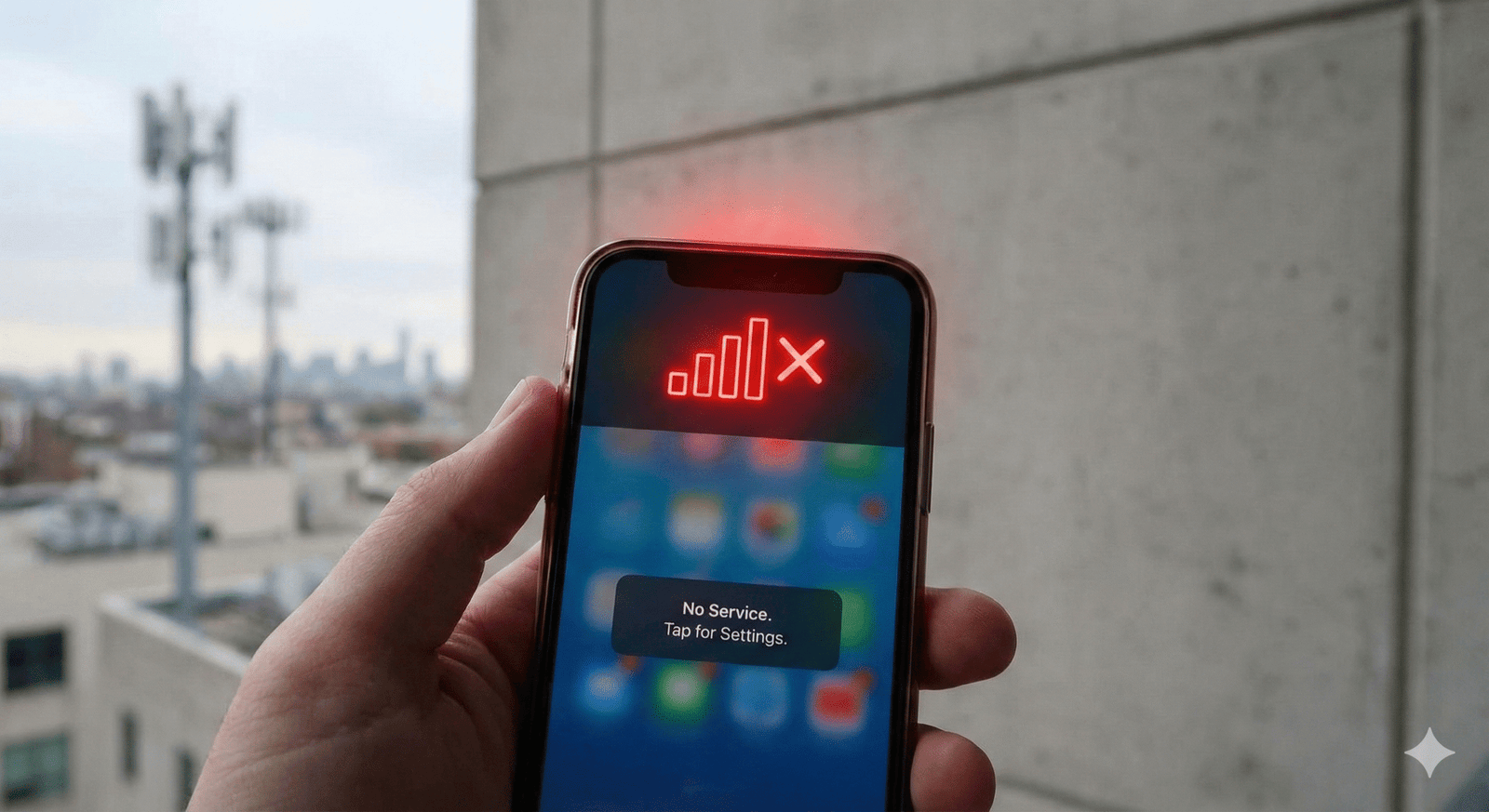
In our hyper-connected digital era, few sights trigger immediate anxiety quite like glancing at your smartphone’s status bar and seeing a glaring red phone signal. That crimson indicator is more than just a color change; it is a universal symbol of digital isolation. It means your lifeline to the internet, crucial work calls, navigation apps, and emergency services has been severed. Whether you are in the heart of a bustling city or navigating rural backroads, encountering a complete network drop-out is a frustrating disruption to modern life.
This critical connectivity failure often represented by a red “X,” a red bar, or an empty triangle depending on your device’s interface signifies that your mobile phone cannot complete a “handshake” with the nearest cellular tower. It is actively searching but finding nothing. This guide goes beyond surface-level advice. We will deconstruct the technical and environmental reasons why your device displays this warning, differentiate it from other system alerts, and provide a comprehensive, step-by-step toolkit to turn that red warning back into a reassuring green or white connection. Prepare to reclaim your digital mobility.
Defining the Red Phone Signal Indicator
Understanding what a red phone signal actually represents is the first step toward troubleshooting. In most modern smartphone interfaces (Android and iOS variations), a red status on the network bar doesn’t just mean “weak” reception; it typically indicates a critical failure state known as “No Service.”
While older interface designs sometimes used a sliding color scale where red meant poor signal, contemporary design language uses it to denote a complete lack of network registration. When this appears, your phone’s internal radio is working overtime, transmitting at maximum power to find a usable frequency, which leads to the secondary issue of rapid battery drain.
- Visual Variations: It may appear as red signal bars, a red “X” over the bars, or the words “No Service.”
- Functional Impact: Complete inability to make standard voice calls, send SMS texts, or use mobile data (4G/5G).
- The Search Mode: The device is actively scanning all available bands, which is highly energy-intensive.
Distinguishing Signal Issues from Battery Alerts
A common point of confusion for less tech-savvy users is misinterpreting different red indicators on their device’s screen or hardware. It is vital to distinguish a cellular connectivity crisis from a power crisis before attempting fixes.
A red phone signal icon is always located in the status bar, usually top-right or top-left, clustered with Wi-Fi and Bluetooth icons. Conversely, a red battery icon indicates critically low power (usually under 15% or 5%). Furthermore, some Android devices have a physical LED notification light on the hardware bezel that glows red when charging or critically low; this has nothing to do with network reception.
- Location Matters: Signal indicators are distinct from battery percentage icons.
- Hardware LEDs: A glowing red light on the phone’s body is almost always power or notification-related, not signal-related.
- Context Clues: If your calls are dropping, it’s the signal. If your screen is dimming, it’s the battery.
The Science of Signal Strength: Understanding dBm
To truly grasp why you see a red phone signal, we must move beyond “bars” and look at the actual science of radio wave strength, measured in decibel-milliwatts (dBm). Signal bars are arbitrary graphics created by phone manufacturers; dBm is the raw, accurate data.
Cellular signals are radio waves that degrade as they travel. A “perfect” signal is rarely achieved outside a lab. The closer the dBm measurement is to zero, the stronger the signal. A red phone signal state occurs when the dBm drops so low that the background noise is louder than the tower’s signal, making communication impossible.
Table 1: Interpreting Cellular Signal Strength (dBm)
| Signal Quality | dBm Range (Approximate) | User Experience | Visual Indicator |
| Excellent | -50 dBm to -80 dBm | Blazing fast data, crystal clear calls. | Full Green/White Bars |
| Good | -81 dBm to -95 dBm | Reliable browsing, occasional minor call quality drips. | 3-4 Bars |
| Fair to Poor | -96 dBm to -110 dBm | Slow data, web pages time out, robotic voice calls. | 1-2 Bars (Yellow/Orange) |
| Dead Zone | -111 dBm and lower | No Service. Complete disconnection. | Red Phone Signal / ‘X’ |
Physical Obstructions: The “Urban Canyon” Effect
One of the most prevalent causes of a red phone signal in populated areas is physical blockage. High-frequency radio waves, particularly those used by modern 4G LTE and especially 5G networks, do not penetrate dense materials easily.
City dwellers often experience “urban canyons” streets flanked by tall skyscrapers constructed of steel frames and thick concrete. These materials act like Faraday cages, blocking or scattering signals. Similarly, being deep inside a large shopping mall, a basement parking garage, or an elevator will almost guarantee a drop to zero signal because the radio waves simply cannot reach you.
- Construction Materials: Metal roofs, steel beams, and thick concrete are primary signal blockers.
- Modern Windows: Energy-efficient glass with metal oxide coatings can reflect cellular signals away from homes.
- Subterranean Locations: Basements and subways are notorious natural dead zones.
Geographical Challenges and Tower Distance
The fundamental principle of radio attenuation means that distance is a major enemy of connectivity. If you are in a rural area, far from major highways or population centers, you may simply be out of range of the nearest cell tower, resulting in a persistent red phone signal.
However, geography also plays a role beyond sheer distance. Natural terrain features can create signal shadows. Living in a valley, surrounded by dense, moisture-rich forests, or residing on the “wrong” side of a mountain away from the transmitter will severely degrade reception.
- Line of Sight: Cellular works best when there is a clear path between you and the tower.
- Terrain Shadowing: Mountains and hills can completely block tower broadcasts.
- Foliage Impact: Dense trees, especially when wet from rain, absorb radio signals effectively.
Network Congestion and Tower Management
Sometimes the issue isn’t where you are, but who else is there. You might have a perfect line of sight to a tower at a music festival or a sporting event and still see a red phone signal. This is due to acute network congestion.
Cell towers have a finite capacity for simultaneous connections. When overloaded, the network must prioritize traffic. Furthermore, towers utilize a technique called “cell breathing.” When a tower is overloaded, it reduces its broadcast power (shrinks its coverage radius) to shed distant users and serve closer ones more effectively, leaving those on the fringe in a sudden dead zone.
- Capacity Limits: Towers cannot handle infinite simultaneous users.
- Deprioritization: During peak times, carriers may throttle connections, leading to timeouts that mimic signal loss.
- Cell Breathing: The dynamic shrinking of coverage areas during high-traffic periods.
The SIM Card Connection: Hardware Failure
We often blame the network, but sometimes the call is coming from inside the house or rather, inside the phone. The Subscriber Identity Module (SIM) card is your physical passport to the cellular network. If it is damaged, dirty, or unseated, a red phone signal is inevitable.
SIM cards are durable but not invincible. Over time, the gold contacts can oxidize, get dirty, or wear down from constant vibrations if the card tray is slightly loose. Dropping your phone can also slightly dislodge the card, breaking the delicate connection needed to authenticate with your carrier.
- Physical Damage: Scratches or corrosion on the gold chip contacts.
- Improper Seating: The card is not lying perfectly flat in the tray.
- Aging Technology: Very old SIM cards may not be fully compatible with newer network protocols.
Software Glitches and Outdated Settings
Your smartphone is a complex computer, and its modem requires specialized software to operate. Occasionally, the background processes governing network connectivity can “hang” or glitch, causing the phone to display a red phone signal even when a usable signal exists.
Furthermore, mobile carriers frequently update their tower technology. Your phone needs “Carrier Settings Updates” to understand how to communicate with these upgraded towers. If you constantly decline these updates, your device may eventually struggle to connect to the evolved network infrastructure.
- Modem Crash: The internal software radio driver may freeze, requiring a reset.
- Outdated Carrier Files: Missing necessary instructions for connecting to local towers.
- OS Bugs: Sometimes a major Android or iOS update introduces temporary connectivity bugs.
The Weather Factor: Rain Fade and Atmospheric Conditions
While less common than physical obstructions, severe weather can influence signal propagation, potentially tipping a weak connection into a red phone signal state. High-frequency signals are susceptible to “rain fade.”
Water is an excellent absorber of radio frequencies. Heavy, torrential rain, dense fog, or thick snowstorms increase the moisture density in the air between you and the cell tower. This atmospheric moisture saps the energy from the signal as it travels, which can significantly reduce the effective range of a cell tower during a storm.
- Rain Fade: Absorption of microwave RF signals by atmospheric rain, snow, or ice.
- Frequency Dependence: Higher frequencies (like mmWave 5G) are more susceptible to weather than lower frequencies (like low-band LTE).
- Temporary Disruption: Weather-related issues usually resolve once conditions clear.
Case Study: The Basement Home Office Dilemma
To illustrate these concepts, consider Sarah, a freelance graphic designer who moved her home office to a newly renovated basement. Immediately, she noticed her smartphone displayed a permanent red phone signal while at her desk.
The diagnosis was a combination of factors. Firstly, she was below ground level, meaning signals had to penetrate several feet of earth and a concrete foundation. Secondly, her new energy-efficient windows just above ground level had metallic coatings. While her upstairs reception was fine (yellow bars), the basement was a perfect Faraday cage. She required a solution that bypassed the physical barriers of her environment.
Troubleshooting Level 1: The “Airplane Mode” Toggle
When faced with a sudden red phone signal, the quickest and most effective first step is to force the phone’s modem to re-scan the environment. The easiest way to do this is the Airplane Mode toggle.
By turning on Airplane Mode for about 30 seconds, you completely shut down the cellular radio. When you turn it back off, the phone does not just try to reconnect to the last known tower; it performs a fresh scan for the strongest currently available signal. This often resolves temporary glitches where the phone was “stuck” trying to connect to a distant tower.
- Action: Access Quick Settings, tap the airplane icon, wait 30 seconds, tap again.
- Why it Works: It forces a complete refresh of the cellular modem’s connection capability.
- Success Rate: High for temporary software glitches or moving between coverage zones.
Troubleshooting Level 2: Manual Network Selection
Your phone is set to automatically select your carrier’s network. However, in border regions or areas with complex roaming agreements, the phone might get confused and fail to lock onto the correct signal, resulting in a red phone signal.
You can manually override this. By going into your phone’s settings under “Mobile Networks” or “Cellular,” you can switch “Network Selection” from Automatic to Manual. The phone will scan and present a list of all detectable carriers. Manually tapping your specific carrier can sometimes force a connection that the automatic algorithm missed.
- Navigate: Settings > Connections/Cellular > Mobile Networks > Network Operators.
- Action: Turn off “Select automatically” and choose your carrier from the list.
- Use Case: Best for international travel or areas near state/country borders.
Troubleshooting Level 3: The Reset Network Settings Option
If basic toggles fail, you may need to clear out corrupted connection data. A “Reset Network Settings” is a powerful troubleshooting step that returns your phone’s cellular, Wi-Fi, and Bluetooth configurations to their factory defaults.
Warning: This will erase saved Wi-Fi passwords and paired Bluetooth devices. However, it also flushes out any deeply rooted software conflicts, corrupted VPN profiles, or outdated APN (Access Point Name) settings that might be causing the persistent red phone signal.
- Navigate (iOS): Settings > General > Transfer or Reset iPhone > Reset > Reset Network Settings.
- Navigate (Android): Settings > System > Reset Options > Reset Wi-Fi, mobile & Bluetooth.
- Outcome: The phone restarts and attempts a completely clean connection to the cellular network.
Advanced Solution: Wi-Fi Calling as a Backup
If you are in a structural dead zone like Sarah’s basement case study, no amount of phone troubleshooting will fix the fact that radio waves cannot reach you. The best solution here is to bypass the cellular network entirely using Wi-Fi Calling.
Most modern smartphones and carriers support this feature. It routes your voice calls and SMS texts over your broadband home internet connection instead of the cell tower. Even with a red phone signal displayed, you will have crystal clear calls as long as your Wi-Fi is stable.
- How to Enable: Look in Settings under Phone or Cellular settings for “Wi-Fi Calling.”
- Requirement: A stable Wi-Fi connection and a carrier that supports the feature.
- Benefit: Seamless connectivity in areas with zero cellular coverage.
Advanced Solution: Cellular Signal Boosters
For users in rural areas where the signal outside is weak, but present, and the signal inside is a red phone signal, a hardware solution may be necessary. A cellular signal booster (or repeater) system can alleviate this.
These systems use an outdoor antenna to capture the faint signal, a powered amplifier to strengthen it, and an indoor antenna to rebroadcast the boosted signal inside the home. They are effective but require some technical setup and an initial investment. Note that they cannot create a signal; if there is zero signal outside (a true dead zone), a booster will not work.
- Components: Outside antenna, amplifier unit, inside antenna.
- Legality: In many regions, these must be registered with your carrier (usually free).
- Caveat: They require at least some signal outside to amplify.
When to Escalate to Your Mobile Carrier
If you have tried physical relocation, software resets, SIM card inspections, and the problem persists especially if it affects multiple devices in the same location the issue is likely on the carrier’s end.
A red phone signal could indicate a local tower outage. Furthermore, there could be a provisioning error on your specific account on the carrier’s servers. Calling technical support can allow them to “re-provision” your line, essentially resetting your connection from their end, which often resolves stubborn, unexplained connectivity issues.
FAQs
Why does my phone show a red signal only inside my house?
This is a classic sign of building material interference. Your home likely has thick walls, metal studs, a metal roof, or energy-efficient windows with metallic coatings that block outside radio signals. The signal exists outside but cannot penetrate your home’s exterior, leading to a red phone signal indoors.
Does a red phone signal mean my battery is about to die?
No. While a device searching for a signal drains the battery very fast, the red phone signal icon specifically indicates a lack of network connection (No Service). A low battery is usually indicated by the battery icon itself turning red or a separate pop-up notification.
Will a 5G phone fix my red signal problems?
Not necessarily, and it might sometimes make it worse. 5G, particularly high-band mmWave, has a shorter range and poorer building penetration than 4G LTE. If your phone keeps trying to lock onto a weak 5G signal and failing, you might get a red phone signal. Switching your phone settings to prefer 4G LTE can sometimes stabilize connection in fringe areas.
Is it safe to use my phone when the signal is red?
Yes, it is safe, but it is frustrating. You won’t be able to make calls (except sometimes emergency 911/SOS calls, which can use any available carrier’s tower). Be aware that your phone transmits at maximum power in this state, which will drain your battery rapidly and may cause the device to feel warm.
Can a bad phone case cause a red signal?
Yes. Cases made of metal or containing significant magnetic elements can interfere with the phone’s internal antenna arrays. If you are on the edge of a coverage zone, a thick or metallic case could tip the balance and cause a red phone signal. Try removing the case to see if reception improves.
Does weather really affect cell phone reception that much?
Usually, weather causes minor degradation, dropping bars from “full” to “medium.” However, in areas where signal is already marginal, heavy rain, thick snow, or dense fog can absorb enough radio energy to cause a complete drop to a red phone signal.
How do I know if my SIM card is the problem causing the red signal?
The easiest test is to borrow a working SIM card from a friend who uses the same carrier. Insert their card into your phone. If your phone suddenly gets a signal, your original SIM card is faulty. If the red phone signal persists with the good card, the issue is likely your phone’s hardware or settings.
Conclusion
Encountering a red phone signal is a disruptive reminder of how reliant we are on invisible networks. It is not just an icon; it is a barrier to communication. However, as we have explored, it is rarely an unsolvable mystery. It is a symptom with a specific cause, whether environmental, geographical, or technical.
By understanding the mechanisms of cellular connectivity from the physics of signal-blocking concrete to the intricacies of SIM card contacts you move from passive frustration to active troubleshooting. Start with simple software toggles, verify your physical surroundings, and utilize powerful backups like Wi-Fi calling. By methodically applying the solutions in this guide, you can banish the red phone signal and ensure your digital lifeline remains open and reliable.